
Viewing Style Profiles
The Style Profiles page shows all customers who have used virtual try-on in your store. Use it to understand your try-on audience and identify valuable customers.
Accessing Style Profiles
Go to Apps → MirrorNex → Customers to open the Style Profiles page. The page title shows as "Style Profiles".
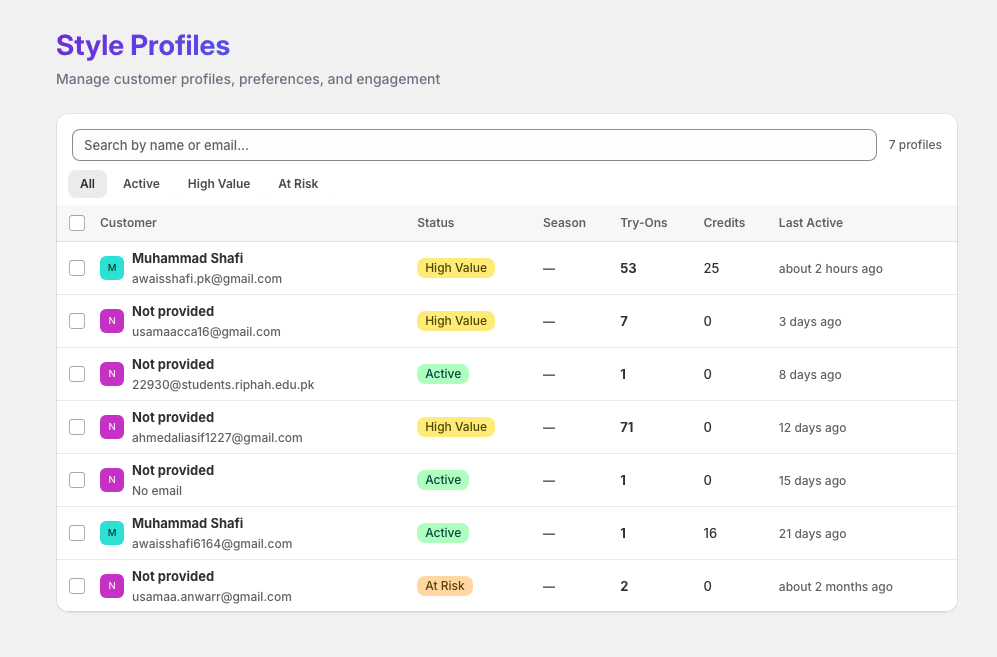
Filter tabs
Use the filter tabs at the top to quickly segment your customers:
All
Shows every customer who has ever used virtual try-on, regardless of activity status.
Active
Customers who have used try-on recently and are actively engaging with your store.
High Value
Customers who have made purchases after using try-on, or who have high engagement with the feature. These are your best candidates for targeted campaigns.
At Risk
Customers who previously used try-on but haven't engaged recently. Consider re-engagement campaigns for this segment.
Searching for customers
Use the search box to find specific customers:
- Search by customer name
- Search by email address
Search is case-insensitive and matches partial text.
Customer list
The customer list shows key information at a glance:
- Customer name — Click to view full profile
- Email address
- Status badge — Active, High Value, or At Risk
- Last activity — When they last used try-on
Pagination
Results are paginated with 10 customers per page. Use the navigation controls at the bottom to browse through pages.
Understanding the data
Style Profiles only shows customers who have actually used the virtual try-on feature. Customers who haven't tried on products won't appear in this list.
Taking action
From the Style Profiles list, you can:
- Click a customer to view their full profile and try-on history
- Identify segments for targeted email campaigns
- Monitor engagement by checking the At Risk tab regularly