
Widget behaviour settings
Configure how the try-on widget behaves, including HD rendering options, privacy settings, branding, and content moderation.
Accessing behaviour settings
Go to Apps → MirrorNex → Widget appearance and scroll down to the Behaviour card.
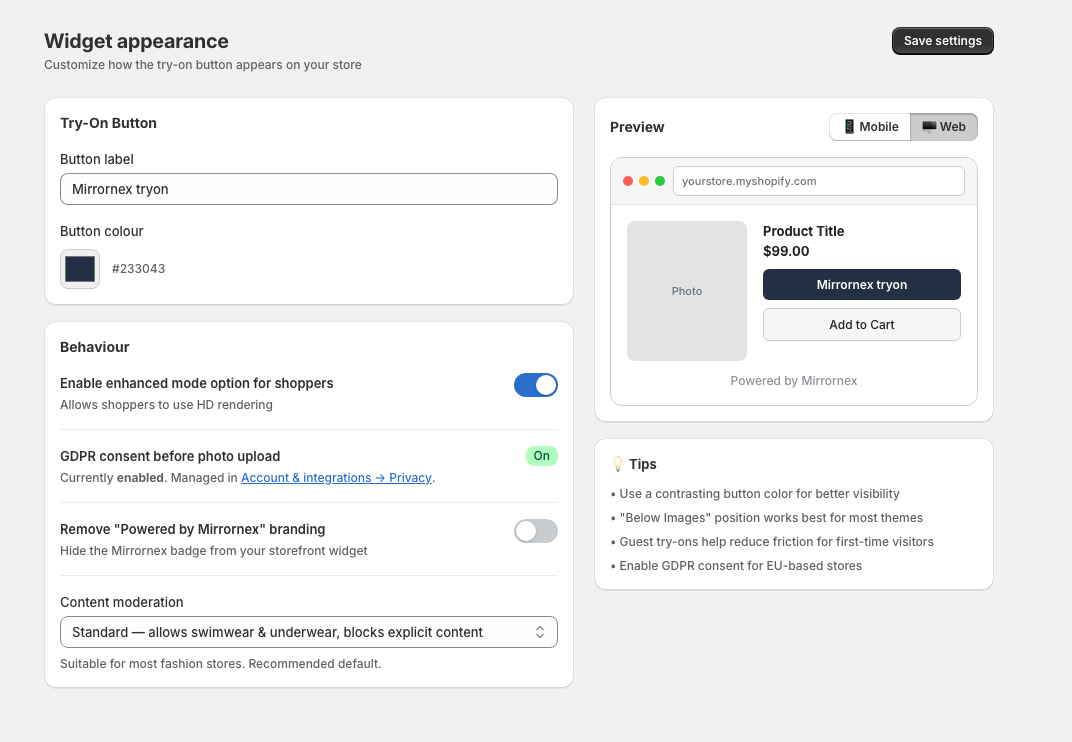
Behaviour options
Styling prompt
Shoppers can enter an optional styling prompt to customize how the garment appears in the try-on. Examples include "tuck in shirt", "roll up sleeves", or "casual look".
GDPR consent before photo upload
Shows whether GDPR consent is required before shoppers upload photos. This setting is managed in the Account & integrations → Privacy section.
For EU stores: If you serve customers in the EU, enable GDPR consent to comply with data protection regulations. This shows a consent prompt before photo upload.
Remove "Powered by Mirrornex" branding
Hide the Mirrornex badge from your storefront widget for a cleaner, white-label look.
- Available on Growth, Scale, and Pro plans — This option is disabled on Free and Sizing plans
- Toggle on to remove the branding badge
Content moderation
Control what types of images are allowed through the try-on system:
- Conservative — Blocks swimwear, underwear, and revealing outfits. Best for children's clothing or culturally conservative stores.
- Standard — Allows swimwear and underwear, blocks explicit content. Suitable for most fashion stores. (Recommended)
- Off — No content filtering. Only disable moderation if your store sells swimwear, lingerie, or activewear.
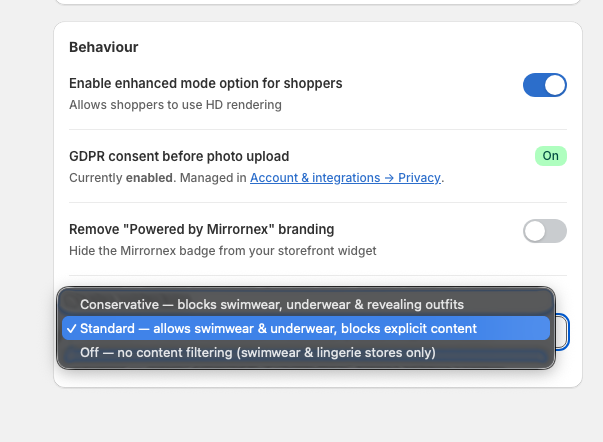
Choose carefully: Content moderation affects what garments can be tried on. If you sell swimwear or lingerie, you'll need to use "Off" mode.
Saving your changes
Click Save settings at the top right of the page. Changes apply immediately.